 Clear Cortex
Video editor for PC: desktop editing और आपकी machine को क्या चाहिए
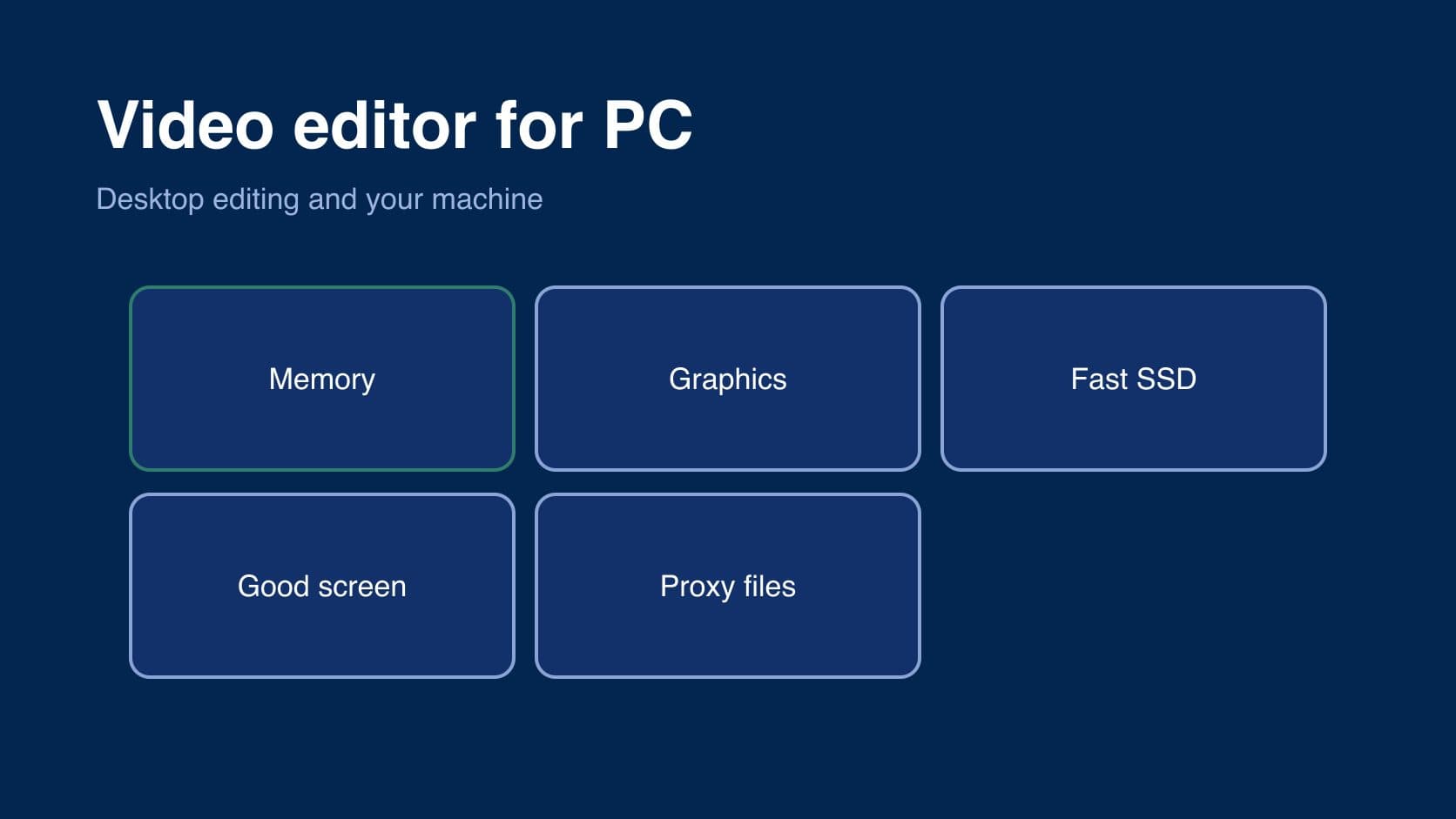
video editor for PC वो desktop software है जो Windows computer या laptop पर install होता है। desktop editors सबसे ज़्यादा control देते हैं — कई tracks, precise cuts, ढंग के colour और audio tools, high-resolution export — और बदले में आपकी machine पर भारी पड़ते हैं। आपके लिए कौन सा सही है, यह features जितना ही आपके hardware पर निर्भर करता है।
Windows पर कौन-कौन से types हैं
- professional timeline editors। Adobe Premiere Pro और DaVinci Resolve Windows पर खूब इस्तेमाल होते हैं। गहरे हैं, लेकिन learning curve असली है।
- simpler desktop editors। कम panels, जल्दी सीखे जाते हैं, vlogs और social clips के लिए काफ़ी। Microsoft का Clipchamp इसका एक example है।
- open-source editors। Shotcut और Kdenlive Windows के लिए community के बनाए options हैं।
Final Cut Pro और iMovie, जिनका ज़िक्र अक्सर इन्हीं lists में होता है, सिर्फ़ Mac पर चलते हैं।
आपके PC या laptop को क्या चाहिए
- memory। ज़्यादा RAM से projects बड़े होने पर भी timeline smooth रहती है; यही सबसे पहले कम पड़ती है।
- graphics। बहुत से editors playback, effects और export के लिए graphics card इस्तेमाल करते हैं। high resolutions पर dedicated GPU सबसे ज़्यादा मदद करता है।
- fast storage। SSD पर रखी footage घूमने वाली hard drive की तुलना में कहीं बेहतर play होती है।
- ठीक-ठाक screen। धुँधले laptop panel पर colour का काम अंदाज़े का खेल है।
जब लोग seriously edit करने लगते हैं तो storage के बारे में ही सबसे ज़्यादा पूछते हैं:
"क्या video editing के लिए SATA SSD अब पुराना हो गया है?"
ज़्यादातर editing के लिए नहीं — कोई भी SSD hard drive से बहुत बड़ा upgrade है। तेज़ NVMe drives high-resolution footage और बड़ी cache files में मदद करती हैं। जब playback अटके, तो hardware खरीदने से पहले proxy files आज़माएँ (lower-resolution copies जिन्हें editor cutting के दौरान इस्तेमाल करता है)।
laptop पर editing
laptop पर अच्छी editing हो सकती है, दो बातों के साथ: उसे plug in रखें, क्योंकि बहुत से laptops battery पर धीमे हो जाते हैं, और अगर internal drive छोटी है तो footage external SSD पर रखें। जो पतला laptop 4K पर हाँफता है, वो 1080p या proxies के साथ अक्सर ठीक चलता है।
AI और आपका PC
desktop editor के अंदर के AI features आपकी अपनी machine पर चल सकते हैं, इसलिए वो load बढ़ाते हैं। AI video generation इसका उल्टा है: models provider के servers पर चलते हैं, इसलिए एक साधारण laptop भी browser से clips बना सकता है। बहुत से लोग shots online generate करते हैं और उन्हें desktop पर cut करते हैं। देखें AI video editor।
अक्सर पूछे जाने वाले सवाल
PC के लिए best video editor कौन सा है?
अगर आपको पूरा control चाहिए और hardware है तो professional timeline editor; अगर आप शुरुआत कर रहे हैं तो कोई simpler editor। देखें best video editor।
क्या low-spec laptop पर video edit हो सकता है?
हाँ, छोटे और lower-resolution projects के लिए, ख़ासकर simple editor या proxy files के साथ। देखें simple video editor।
PC editor इस्तेमाल करूँ या online वाला?
लंबे या भारी projects के लिए PC editor, quick social video के लिए online वाला। देखें online video editor।
सार
- desktop editors सबसे ज़्यादा control देते हैं और आपकी machine से सबसे ज़्यादा माँगते हैं।
- RAM, graphics और SSD सबसे ज़्यादा मायने रखते हैं; proxies धीमी machine की मदद करते हैं।
- AI generation cloud में चलता है, इसलिए आपके PC को सिर्फ़ results cut करने होते हैं।
Clear Cortex browser में चलता है और timeline editor नहीं है, इसलिए यह आपके desktop editor से compete नहीं करता — उसे material देता है। video mode या Film Studio में short clips generate करें, Edit tab में उनकी lighting या scene बदलें, और PC पर cut करने के लिए download कर लें। overview के लिए देखें AI video editor।