 Clear Cortex
AI photo editor: edit a photo by describing the change
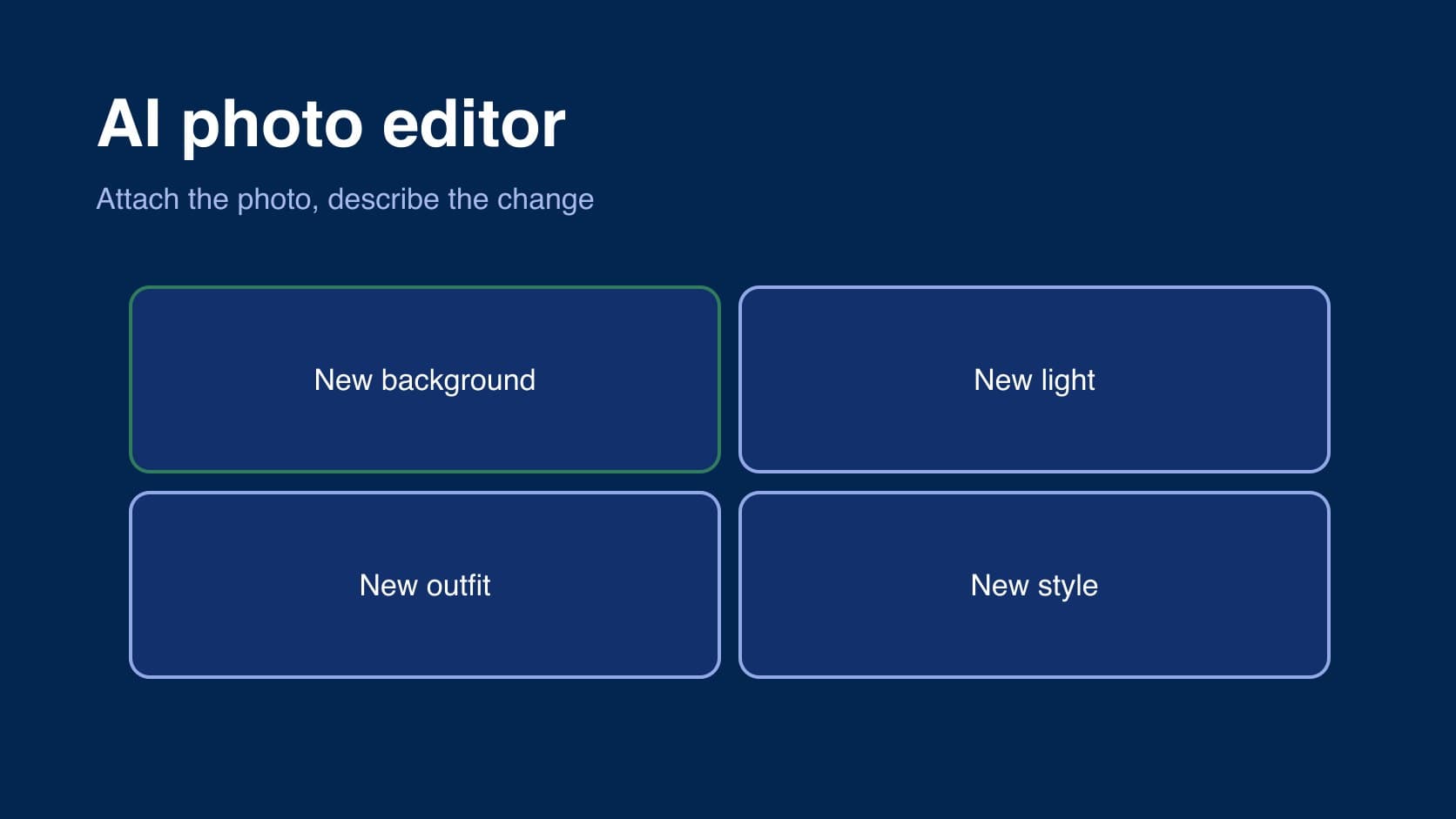
an AI photo editor changes a photo from a description instead of from tools. you attach the photo, write what should be different — "make it evening", "put her in a red coat", "swap the background for a beach" — and the model redraws the image with the change, keeping the rest. this page covers what it does well, how to word an edit, and where it still goes wrong.
the short answer
- attach the photo as a reference.
- say what changes and, just as important, what stays the same.
- one edit per try, so you can see what each instruction did.
- check faces, hands and text at full size before you use it.
how AI photo editing works
older editors change pixels you select. an AI editor redraws the whole image, using your photo as a guide and your words as the instruction. that is why it can do things a brush cannot — change the season, relight a room, dress someone differently — and why it can also change things you didn't ask it to, unless you say they must stay.
what you can change
- the background: a new room, a street, a plain studio colour.
- light and time of day: morning, golden hour, night, overcast.
- clothes and styling on a person, keeping the face.
- objects: add a plant, take out a cup, put your product on the table.
- style: turn a photo into an illustration, a 3D render, a film look.
marketers use it to get many looks from one shoot. one creator's tip for ads:
"Use a real actor and change her look with GPT Image or NB."
(NB is Nano Banana.) recipes for each kind of change are in how to change a photo with AI.
how to word an edit
name the change, then lock everything else:
"keep the woman in image 1 exactly as she is — face, hair, pose and expression — and change only her jacket to a camel wool coat"
if the result drifts, repeat the lock more specifically ("same face, same freckles, same earrings") rather than adding more changes.
which models edit best
editing needs a model that reads reference images closely. in Clear Cortex those are Nano Banana 2 and Pro, GPT Image 2 and Seedream 4.5, which all take several references; the Flux.2 models take fewer. Nano Banana 2 is the usual starting point; GPT Image 2 is strong when the instruction is long and exact.
where it goes wrong
- faces drift slightly with each edit. edit from the original photo each time, not from the last result.
- small text and logos get redrawn. check them.
- pixel-exact work — removing one blemish, cutting out a background for a transparent PNG — is still better in a traditional editor.
editing photos in Clear Cortex
open image mode, attach your photo (or pick it from Assets), write the change and what must stay, and generate. results land in Assets next to the original, so you can compare them and keep editing from whichever you like. to put two photos together, see combine two images with AI.
frequently asked questions
can AI edit my photo without changing my face?
mostly. say the face must stay the same, and edit from the original each time; check the result closely.
what is the best AI photo editor?
for editing by description, Nano Banana 2 is a strong default and GPT Image 2 handles long, exact instructions well.
the summary
- attach, describe the change, lock the rest.
- one edit per try, from the original.
- check faces, hands and text.
more on making images in AI images.