 Clear Cortex
AI avatar video: how to make a generated presenter talk, and keep the same face
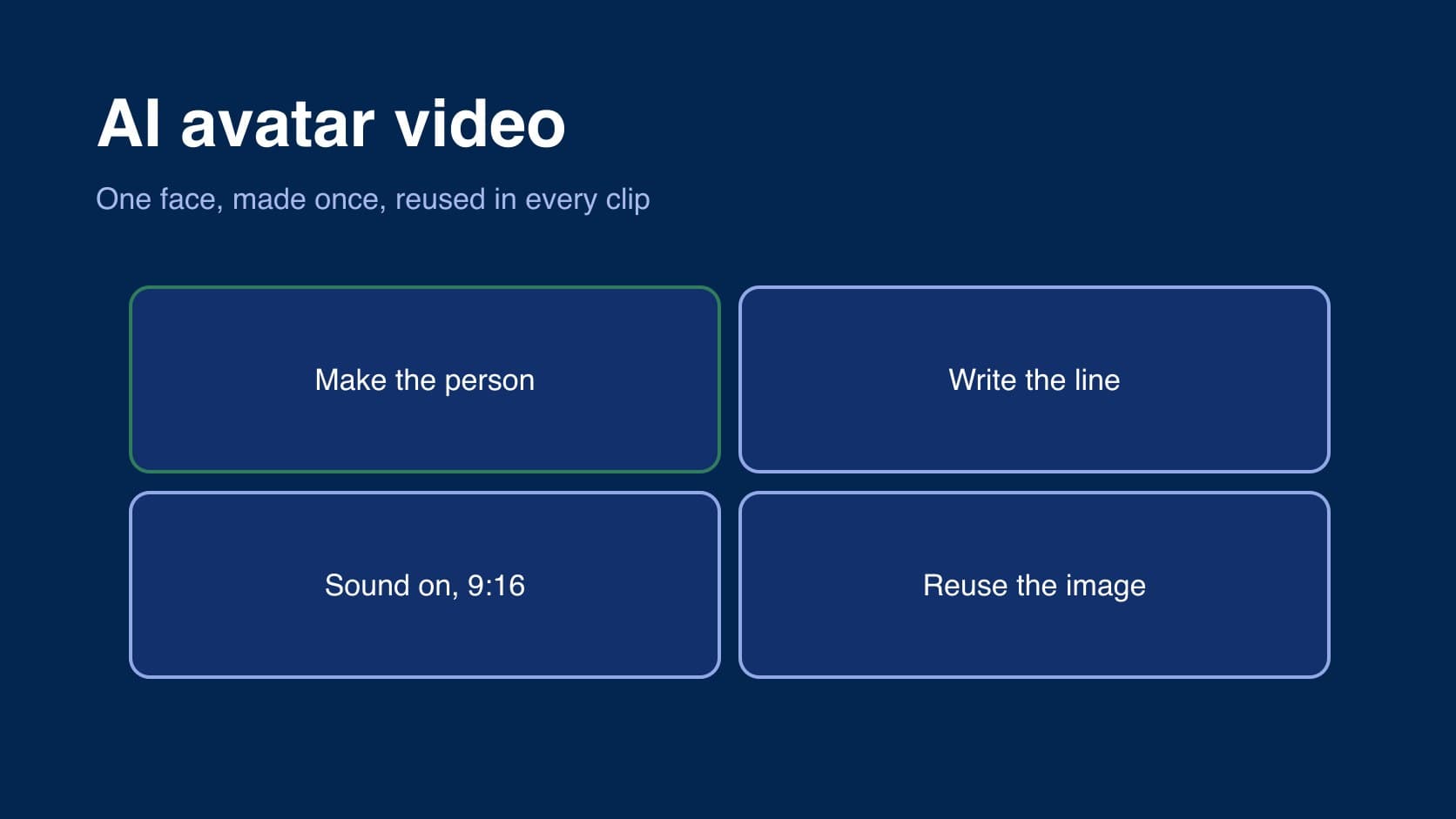
an AI avatar video is a clip of a generated person — a presenter, a creator, a spokesperson — talking or reacting to camera, with nobody filmed. brands use them for ads, product explainers and social posts, where they need someone on screen but not a shoot. this page covers the two ways to make one, how to keep the same person across clips, and where avatars still fall short.
the short answer
- make the person first, as a still image, and keep it.
- use that image as the reference for every clip, so it stays the same face.
- write what they say in the prompt, with how they say it.
- keep clips short and join them; short takes look more natural than one long one.
two kinds of avatar video
presenter tools
you pick a stock presenter, paste a script, and get a talking-head video with lip sync. good for training and internal explainers, where the same framing every time is fine. the look is recognisable, which is a problem for ads.
generated scenes
a video model makes the whole shot: the person, the room, the movement and the voice, from a reference image and a prompt. you get variety — a kitchen, a car, a walk down the street — and the clip looks like a social post rather than a webinar. this is the approach for UGC-style ads.
how to make an AI avatar video
- create the avatar. generate a clear, front-on image of the person: age, look, clothes, setting. a character sheet (front, side, expressions) helps later shots match.
- write the scene. where they are, what they are doing, and the line they say, in quotes.
- describe the delivery. "casual, a little hesitant, like talking to a friend" sounds more human than "speaks clearly".
- generate with sound on, in 9:16 for social.
- review the face and the lips at full size before you use it.
an example prompt:
"the woman from the reference sitting in her car, phone held at arm's length, natural daylight, she says: 'okay, I didn't expect this to actually work.' casual, slightly surprised, small laugh at the end"
keeping the same person across clips
the most common complaint about avatar video is that the person changes between clips. the fix is to never describe the face in words again once you have an image you like: always attach that image, and describe only the scene and the line. save the image somewhere you will find it, and reuse it.
where avatars still fall short
- long takes: the longer the clip, the more the face and voice drift. cut it into short lines.
- hands and products: holding a specific product is harder than talking. attach a product image too.
- claims: a generated person giving a testimonial is not a real customer. do not present it as one.
AI avatar videos in Clear Cortex
make the person in Character Studio — portrait, character sheet, expressions or a creator-style selfie. then open video mode and use the Talking to camera preset in Film Studio, or the UGC preset in Marketing Studio if a product is in the shot, with your avatar attached as the reference. both make vertical clips with sound.
frequently asked questions
what is an AI avatar video?
a video of a generated person speaking or reacting to camera, made without filming anyone.
can the avatar speak?
yes. write the line in the prompt and generate with sound on; the model makes the voice and the lip movement together.
can I use the same avatar again?
yes. keep the image you made and attach it to every clip.
the summary
- make the person as an image, then reuse it for every clip.
- write the line and the delivery in the prompt.
- short clips, sound on, 9:16 for social.
more on making clips in how to make an AI video, and the UGC format in UGC video.